
Visualize Solution Tutorial
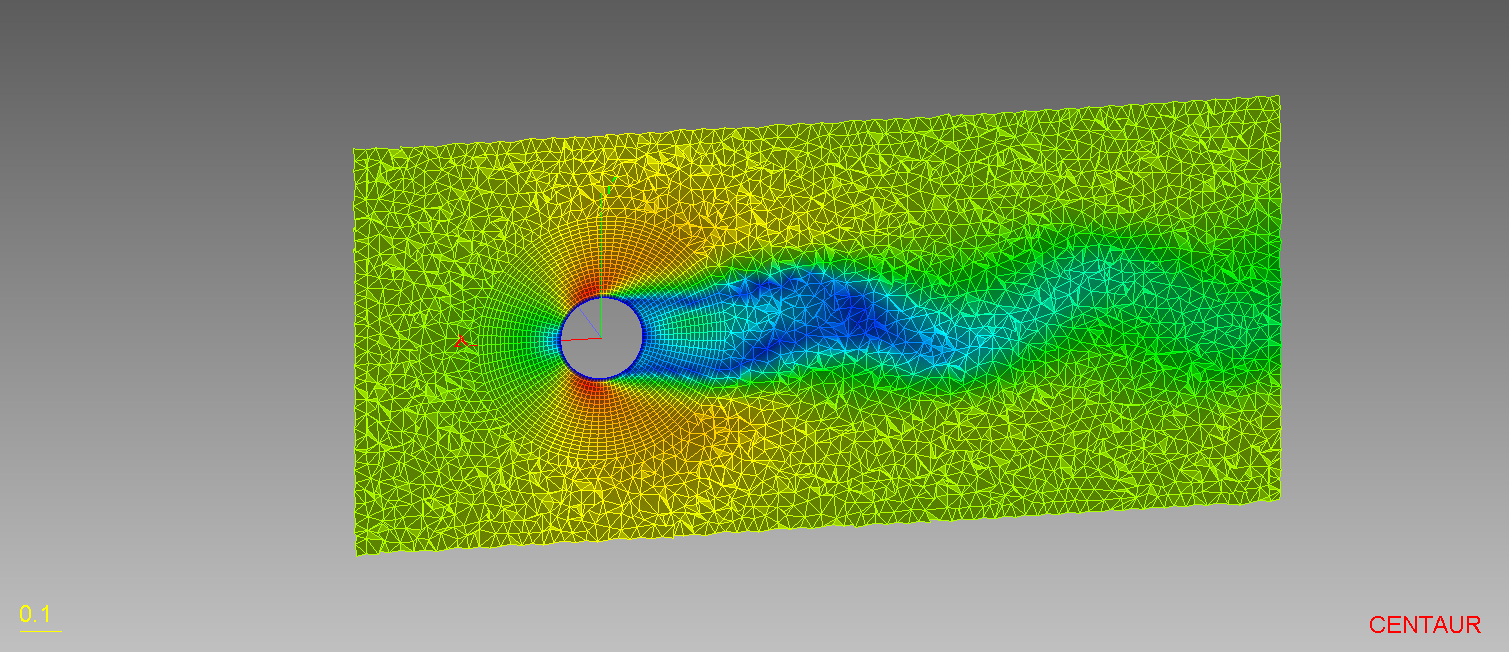
- Load mesh and solution files
- Perform flow visualization
- Create cuts through the flow domain
- Reuse setup for calculation of additional field variables.
Table of Contents
Step 1: Import the Mesh and Solution files
Step 2: Select Solver Variables for Visualization
Step 3: Visualize Solution Data
Step 4: Select Custom Field Variables for Visualization
Step 5: Rerun Visualization
Preparation
- Download the cylinder-postsolution.tar.gz file to your working directory. This file can also be found in the “CENTAUR_Tutorials” folder located in CENTAUR’s installation directory.
- Unpack the cylinder-postsolution.tar.gz in your working directory. It includes the files cylinder.rst and cylinder.hyb, as well as the OpenFOAM solution folder cylinder.hyb_OpenFOAM.
- Start CENTAUR and open the cylinder.rst file.
Step 1: Import the Mesh and Solution Files
Upon opening the restart file, the initial geometry looks like this:
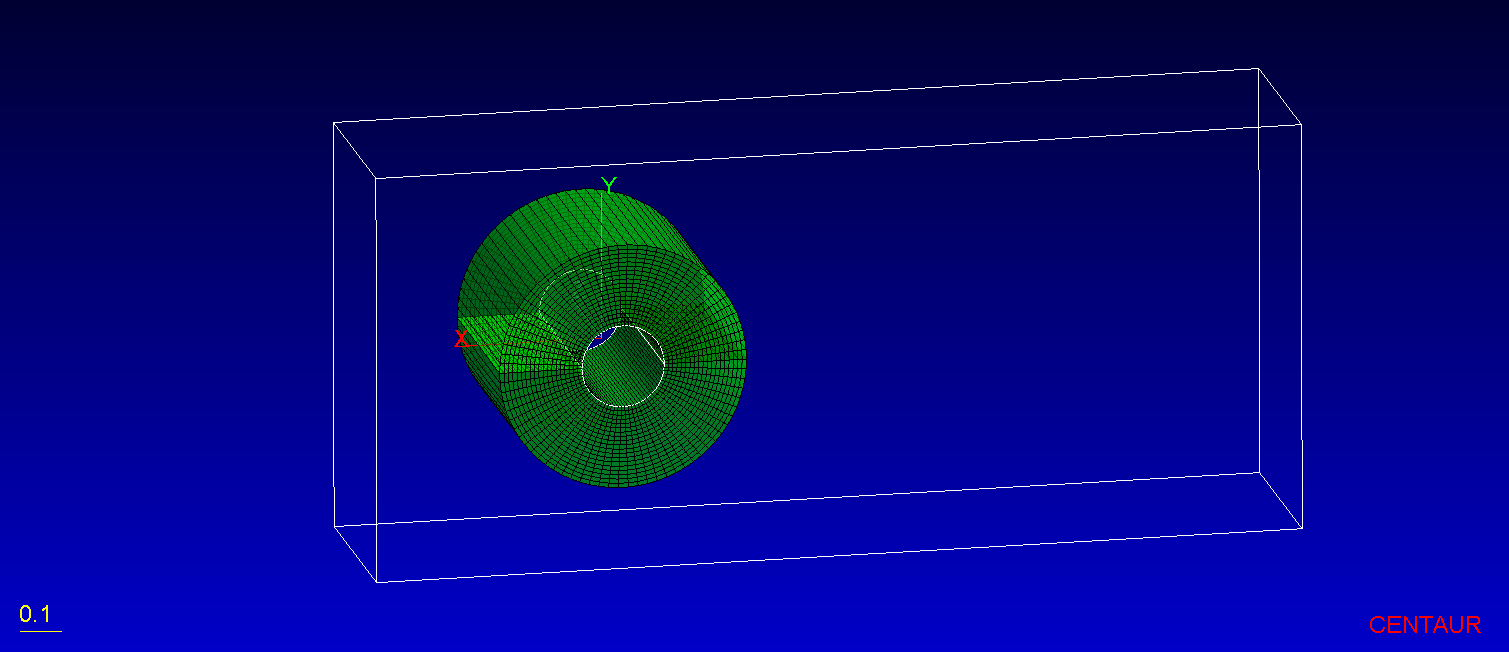
Cylinder Geometry with Block.
Use the FlowField>Setup… option or the corresponding toolbar icon  to provide the mesh and solution files.
- Mesh: cylinder.hyb_OpenFOAM
- Solution: folder named 50 (within the cylinder.hyb_OpenFOAM folder)
- Mesh (CENTAUR fromat): cylinder.hyb
The Output file, named post file, is a special CENTAUR mesh including solution data that will be created after visualization is run. For this tutorial, keep the default file path and name.
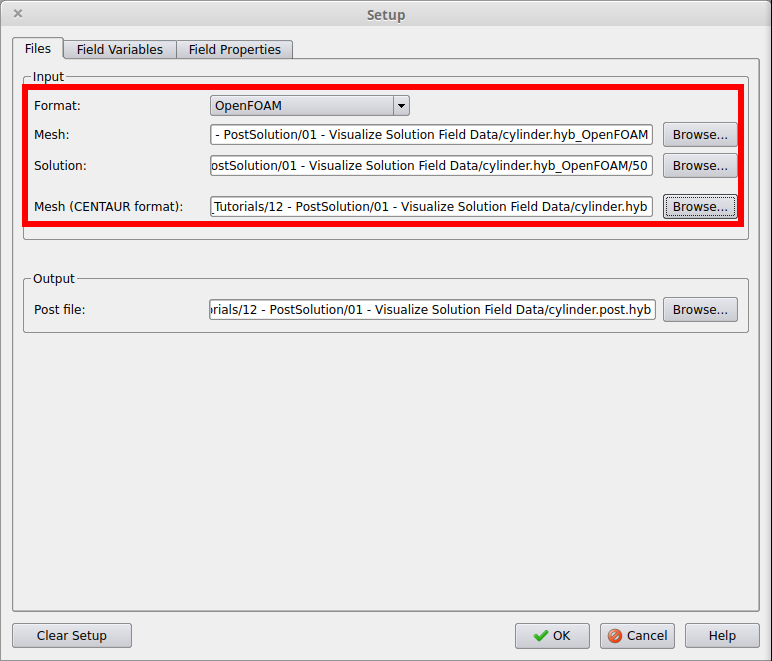
Files Tab in the Setup Window.
Step 2: Select Solver Variables for Visualization
Next, switch to the Field Variables tab of the Setup window to select which field variables will be visualized. The selected variables will also be written in the post file. Field variables are categorized as Solver variables and Custom variables. The former are retrieved from the provided solution file, whereas the latter are user-specified variables that are calculated within CENTAUR.
Enable the Solver variables option via the checkbox and click the Select… button to specify the subset of solver variables to be visualized.
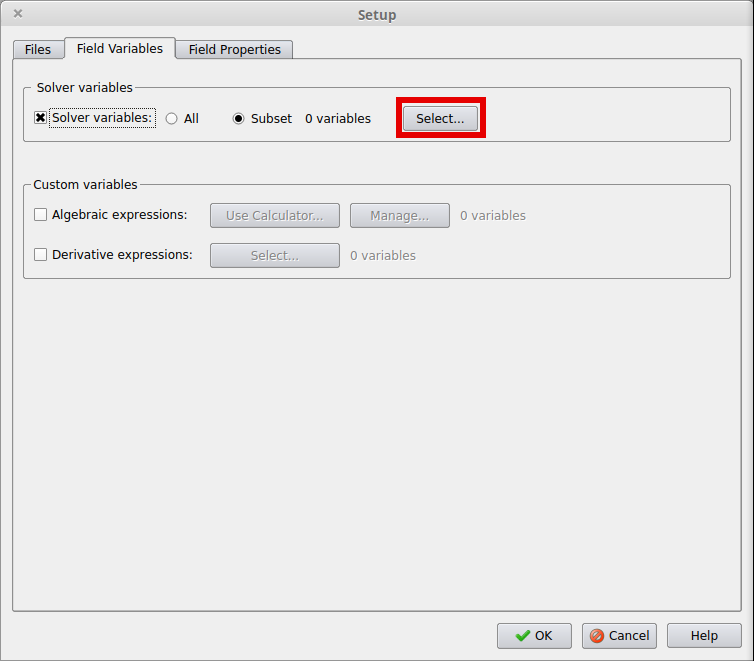
Define a Subset of Solver Variables to be Visualized.
In the Choose Solver Variables window, choose Ux, Uy, Uz and p and move them to the Selected Variables field using the > button. In this way, only the Ux, Uy, Uz and p variables will be available for visualization.
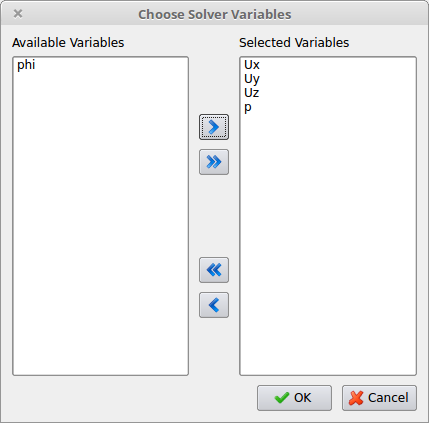
Choose Solver Variables Window.
Step 3: Visualize Solution Data
Now that the setup is ready, the Run Visualization option is enabled in the FlowField menu. Clicking on it brings up an Output window with text regarding the running visualization process. After the process is finished, a popup window prompts for loading the created mesh/solution file, as well as for creating mesh cuts upon import.
Enable the Create meshcuts checkbox and click Yes in the popup window. In the Mesh Cut Setup window that appears, set up a Planar/Axis-aligned mesh cut at Z = 0.25, by selecting Direction Z and clicking the button Middle.
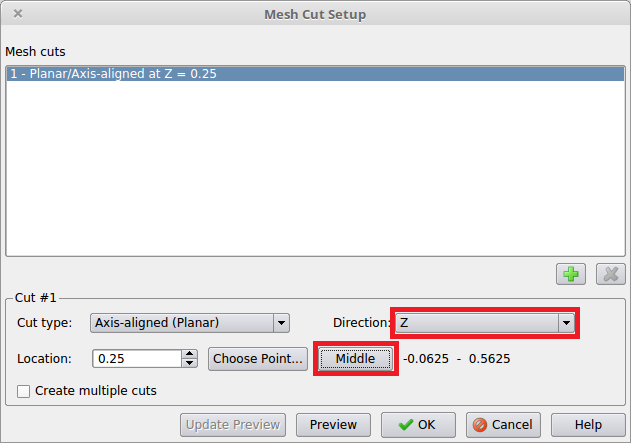
Create Cuts.
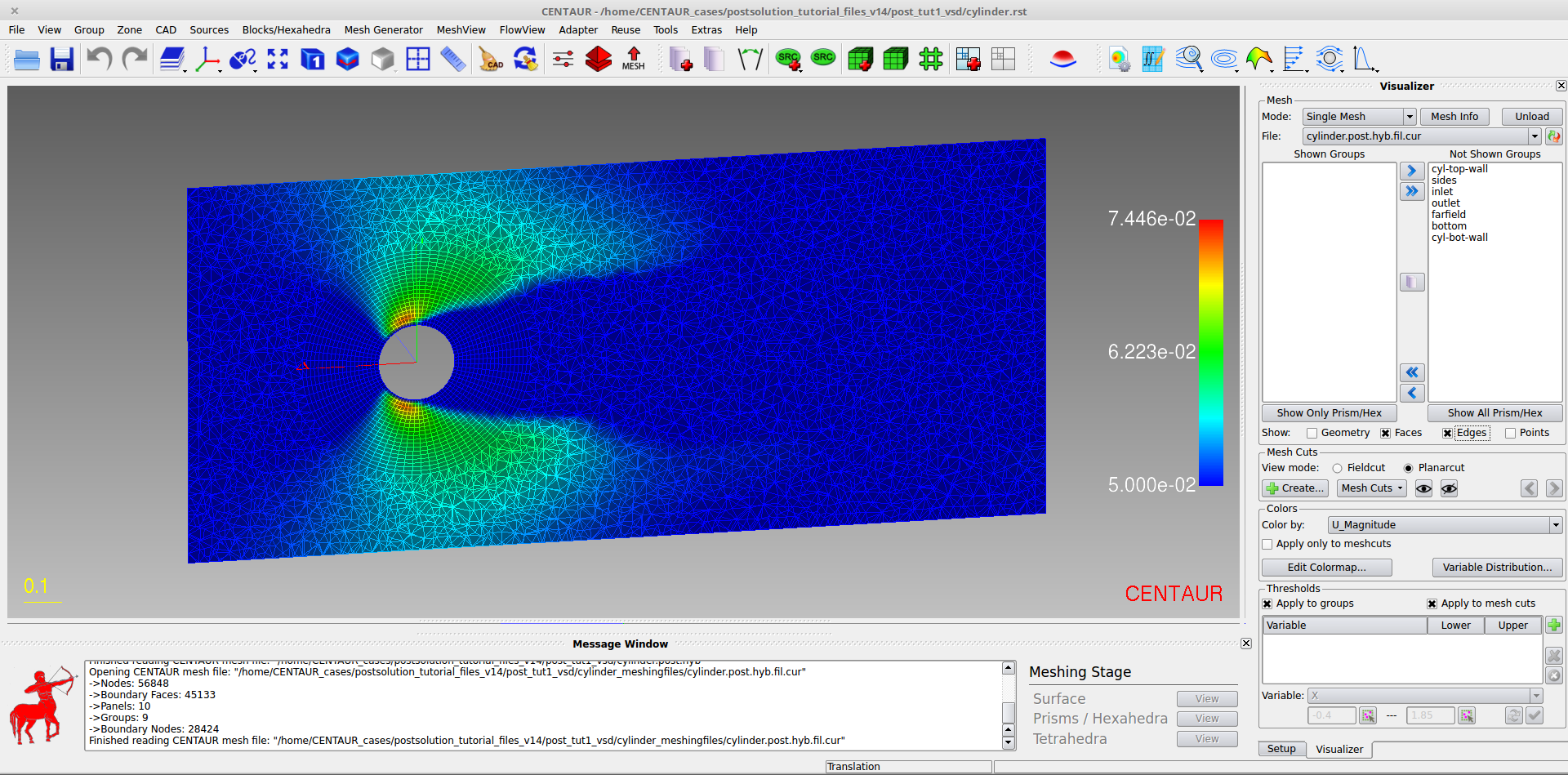
Additionally, in the Colors block of the sidebar set the Color by option to U_Magnitude. That is the magnitude of the velocity, which was automatically calculated.
The screen should now look like the one in the following image:
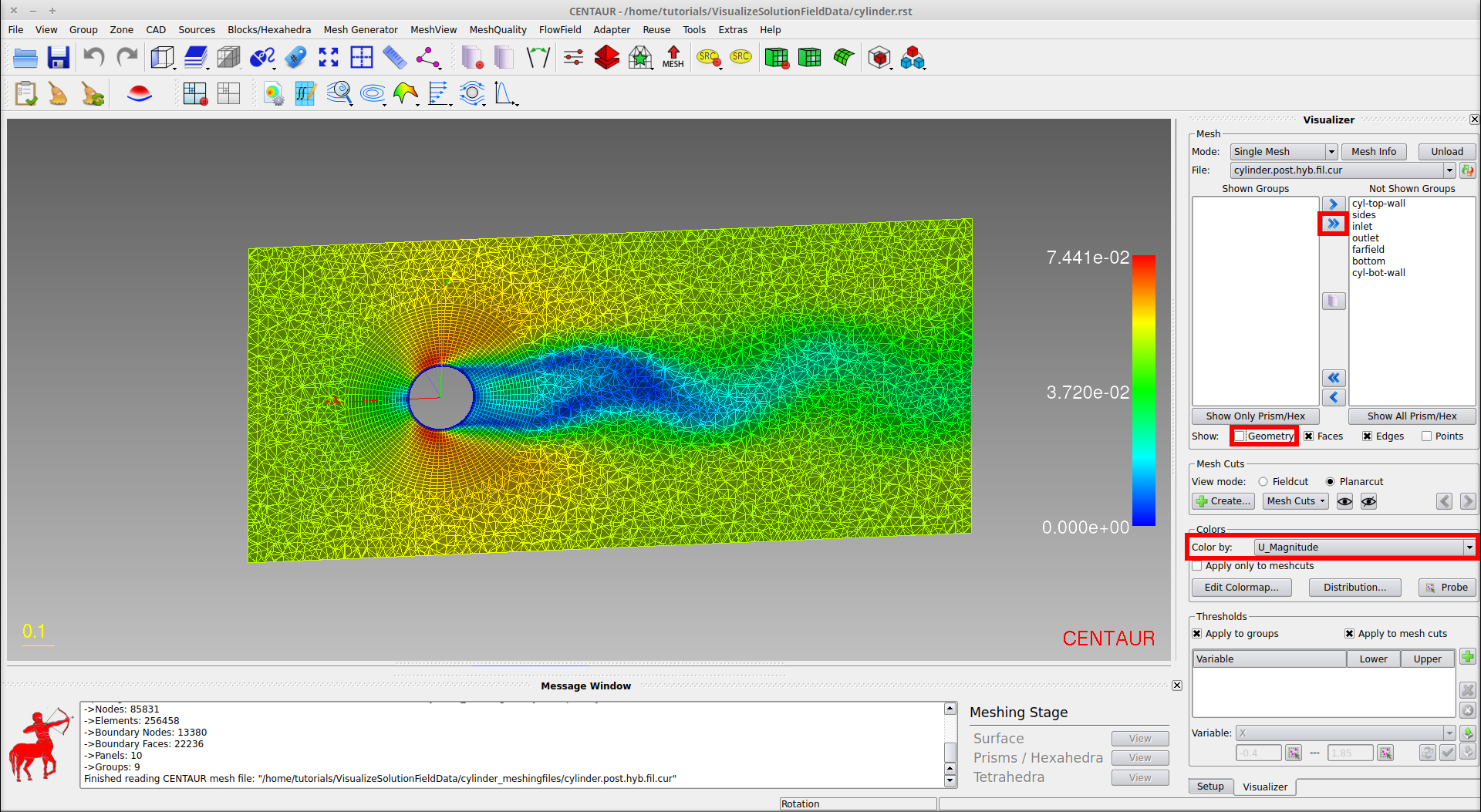
Mesh Cut Colored by Velocity Magnitude.
The Visualizer sidebar contains information regarding the selected variable. Click the Distribution… button (below the colorbar in the sidebar) to see a histogram with the distribution of U_Magnitude values:
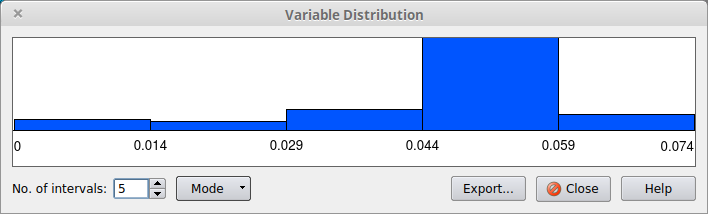
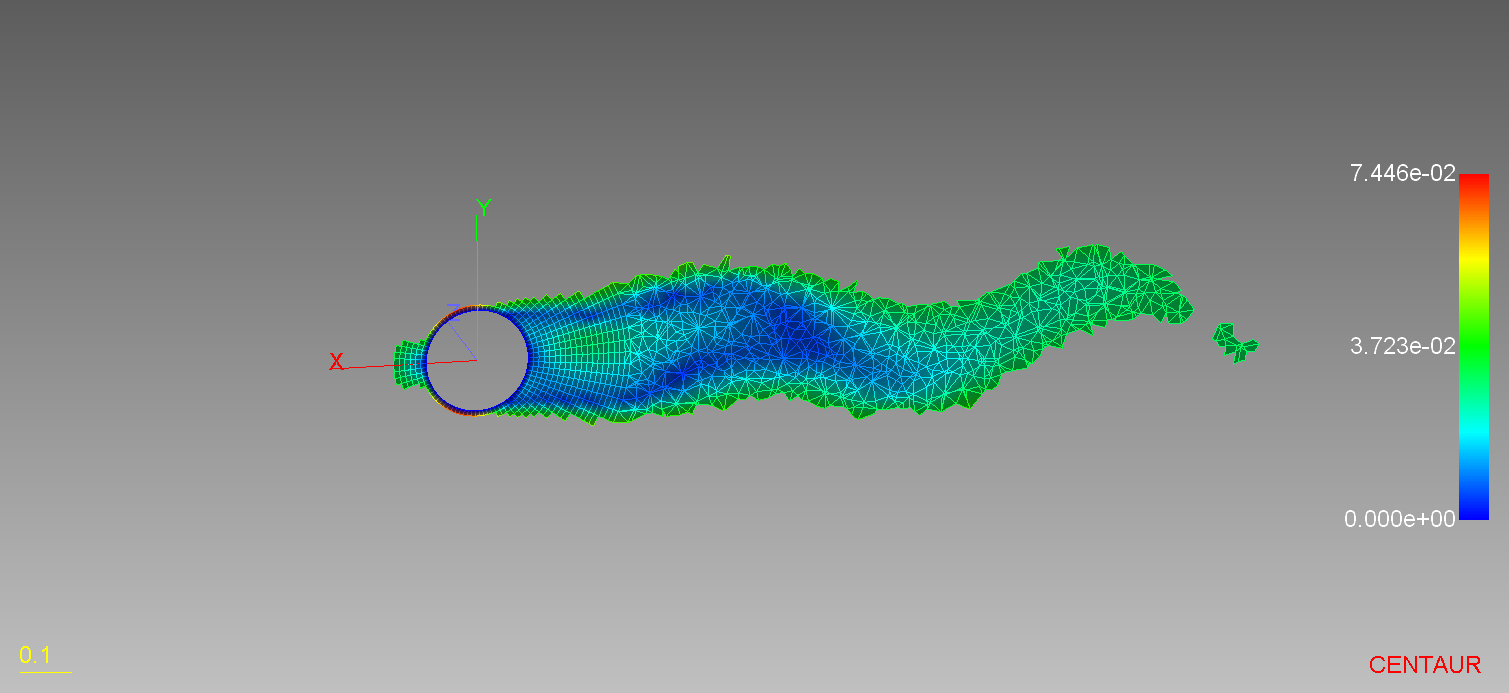
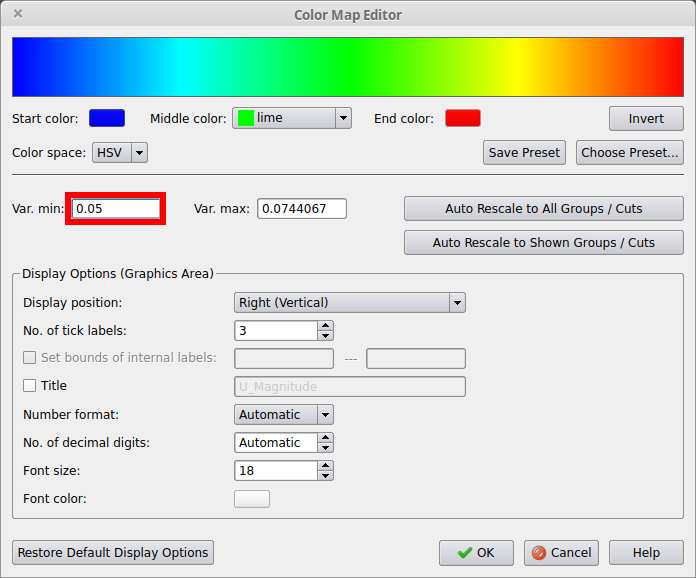
Histogram with Velocity Magnitude Values.
Step 4: Visualize Custom Field Variables
In this step, the Setup will be augmented for custom field variables to be visualized as well. Custom field variables can be:
- Algebraic expressions, which are constructed using algebraic operations on solver variables
- Derivative expressions, which are derived from solver variables or algebraic expressions using differential operations
For the calculation of some derivative expressions (e.g. wall shear stress), it is necessary to map the solution variables founded in the provided solution file and define some properties of the flow field. This is done in the Solution tab of the Setup window.
Re-open the Setup window either via the FlowField>Setup… option or via the toolbar icon , and switch to the Field Properties tab. Notice that the Solution Variables Mapping options are automatically filled in. In the Field Constants block of the window, retain the Flow Type as Incompressible and enable the Ref. density and Ref. kinematic viscosity parameters; set their values to 1.0 and 0.00001, respectively. These are the values that have been used by the solver.
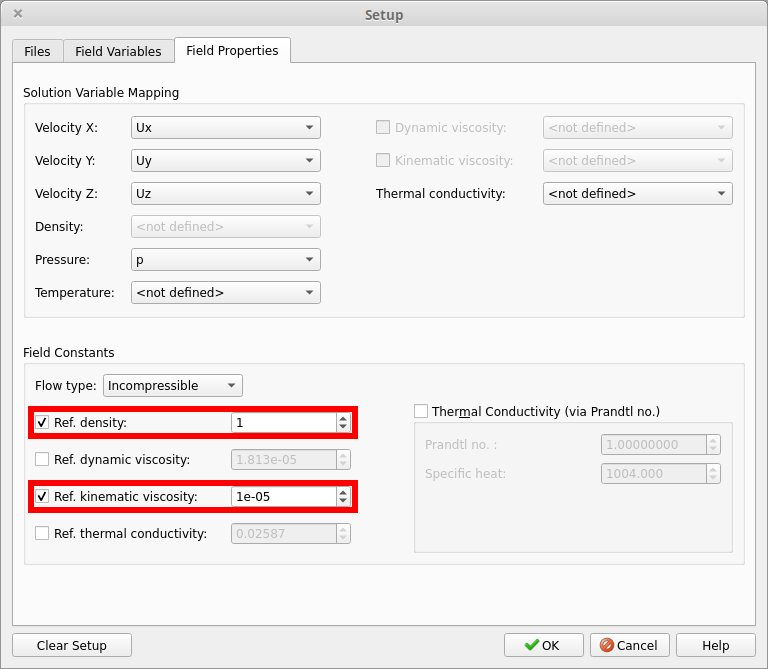
Field Properties Tab in the Setup Window.
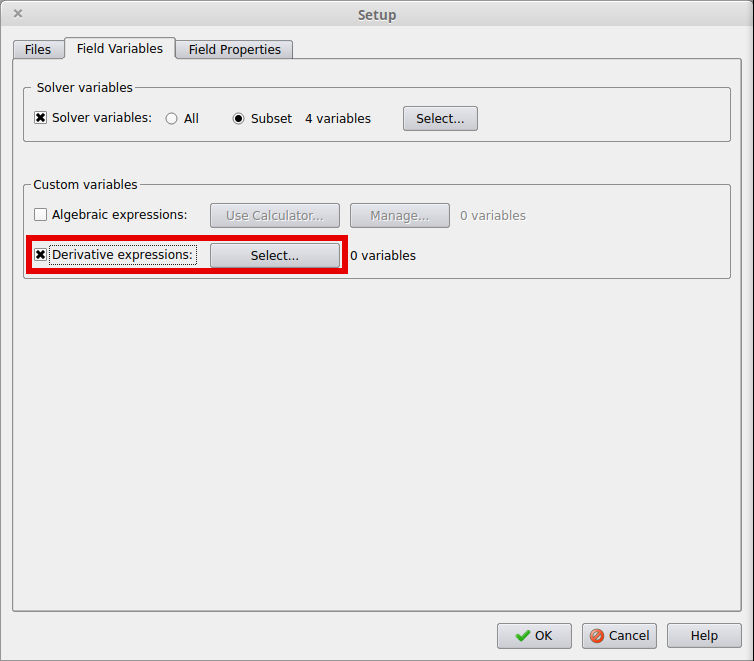
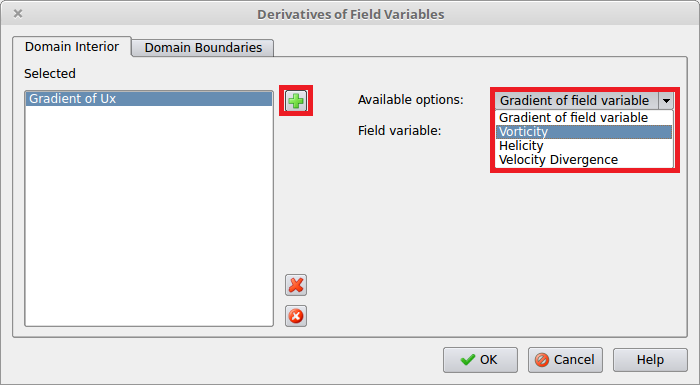
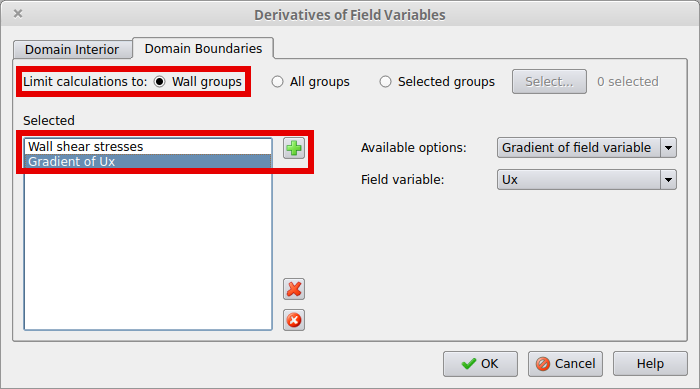
Similarly, add the gradient of pressure by hitting the add button (+) again, keeping the default option (Gradient of field variable), and selecting pressure (p) from the Field variable drop-down list.
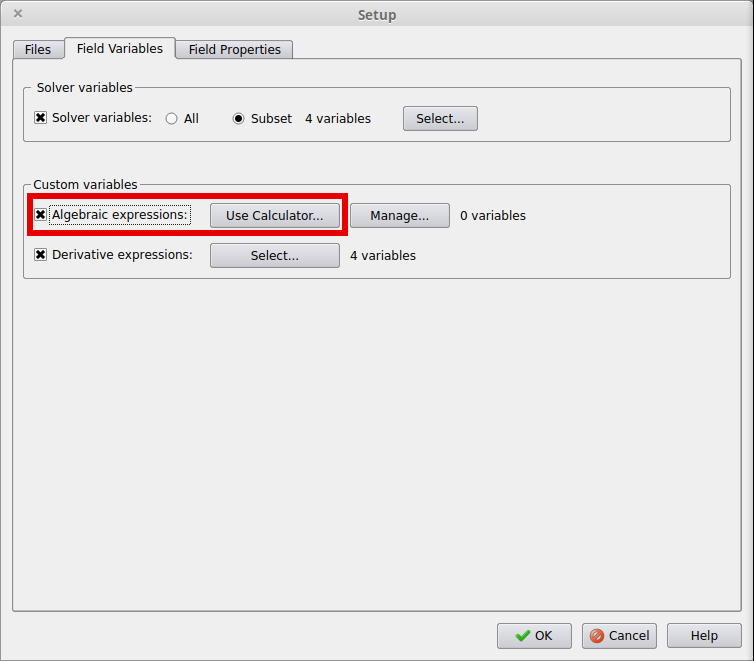
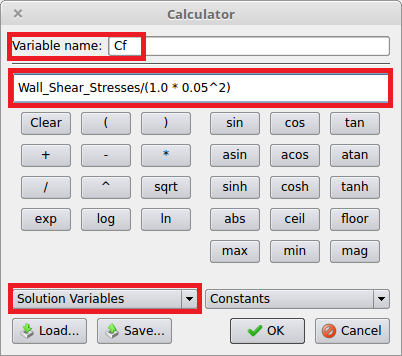
Formulate Algebraic Expression.
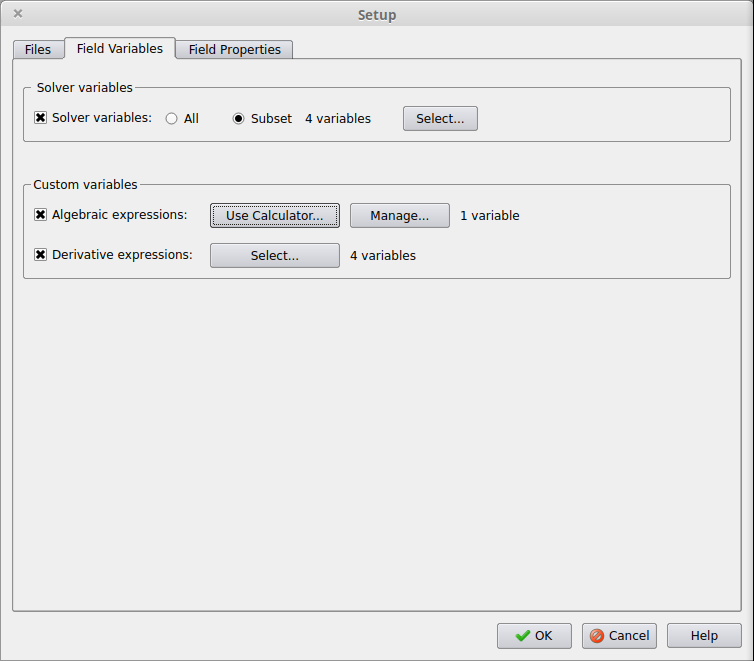
Step 5: Rerun Visualization
Use the FlowField>Run Visualization option to re-process the visualization data. Note that since the output filename was not changed in the Files tab of the Setup window, the existing post file will be overwritten. When the process is finished, click Yes in the popup window to load the new post file and the previously used mesh cuts.
Set the Color by option to Vorticity_Magnitude, which was calculated along with the vorticity components, to plot the derived field quantity:
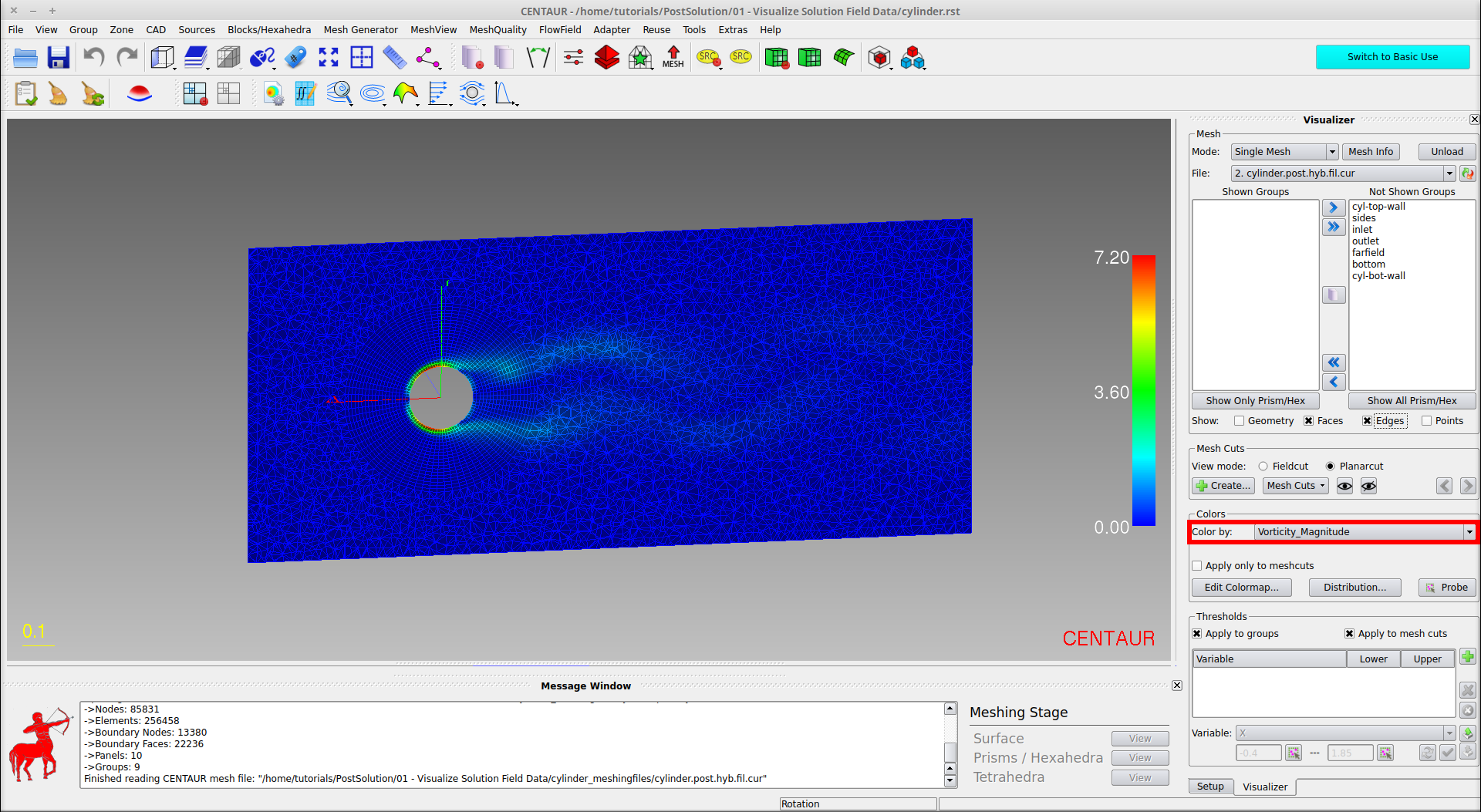
Mesh Cut Colored by Vorticity Magnitude.
The variable to be plotted next is the skin friction coefficient (Cf). Set the Color by option to Cf and the display shows the corresponding values on the planar cut. Recall that when constructed, Cf was defined only for Wall Boundaries. Therefore, click the Show All Prism/Hex button to move all the wall groups to the Shown Groups list and click the hide the meshcut using the corresponding button. In this way, the values of Cf can be visualized on the cylinder walls. The display appears in the following image:
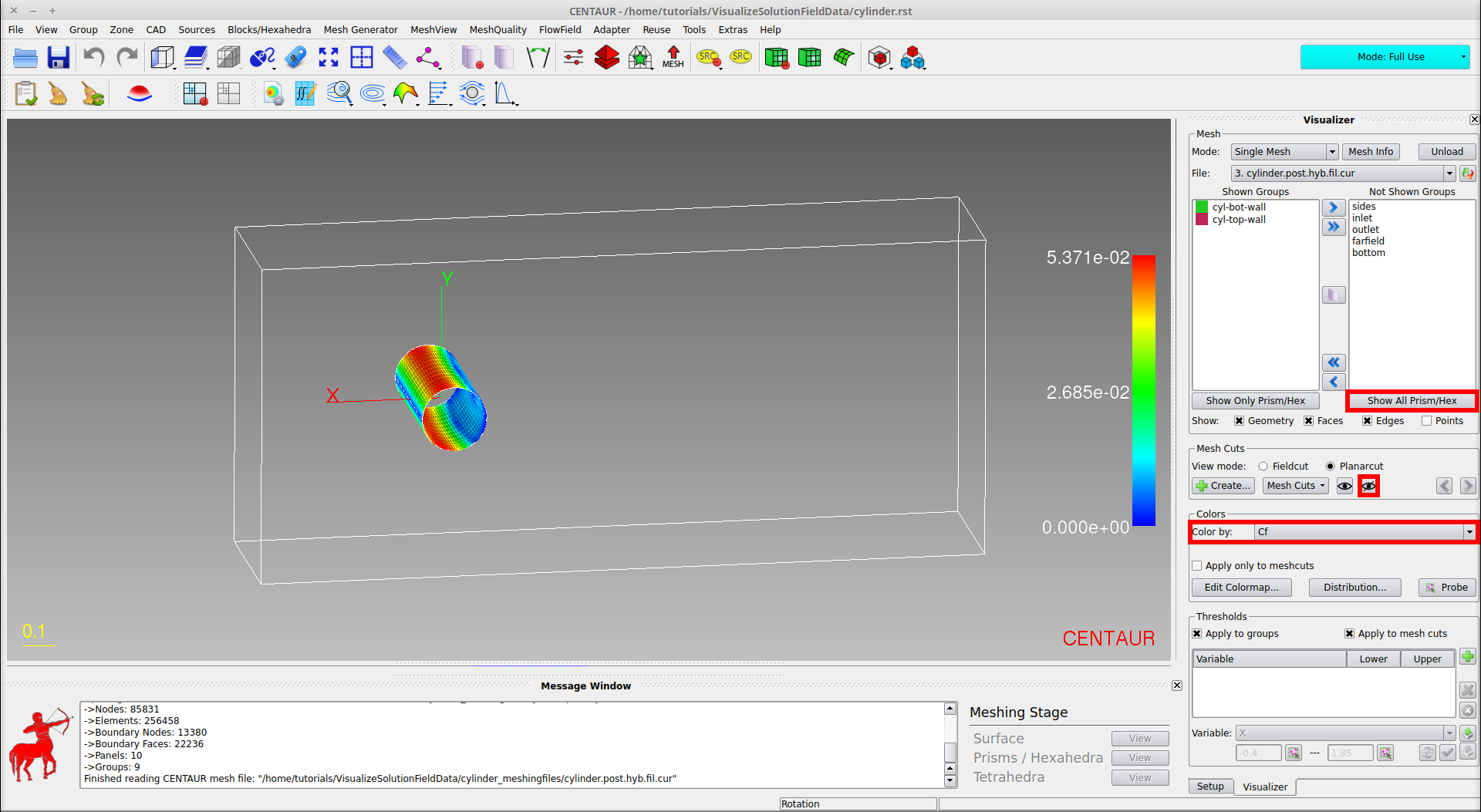
Surface Mesh Colored According to Skin Friction Coefficient.