Create Block Wizard – Test Portal

Create Block Wizard

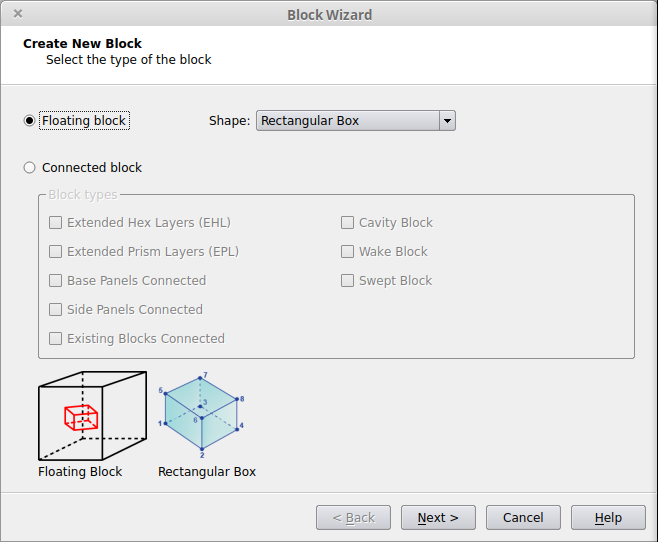
The Create Block Wizard is a step by step tool used to create blocks that are used to produce high quality locally structured meshes. Blocks can be either attached to the geometry, connected to other blocks, or floating in the domain interior. The wizard can be started either directly via the Blocks/Hexahedra>Create Block… option or using the Create Connected Block Toolbar button:

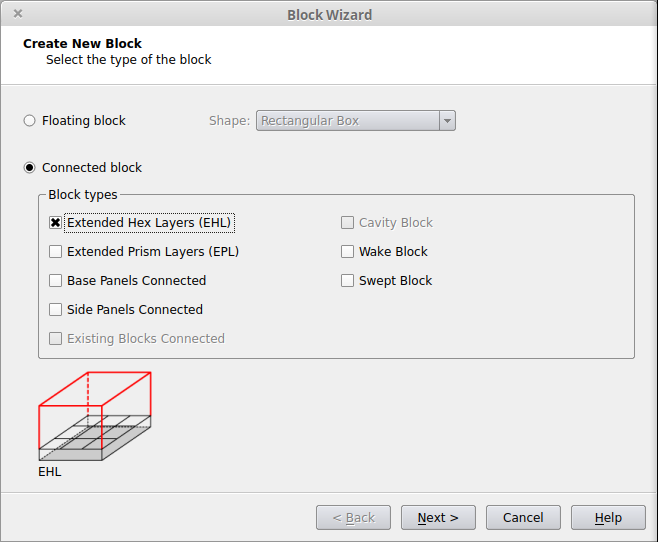
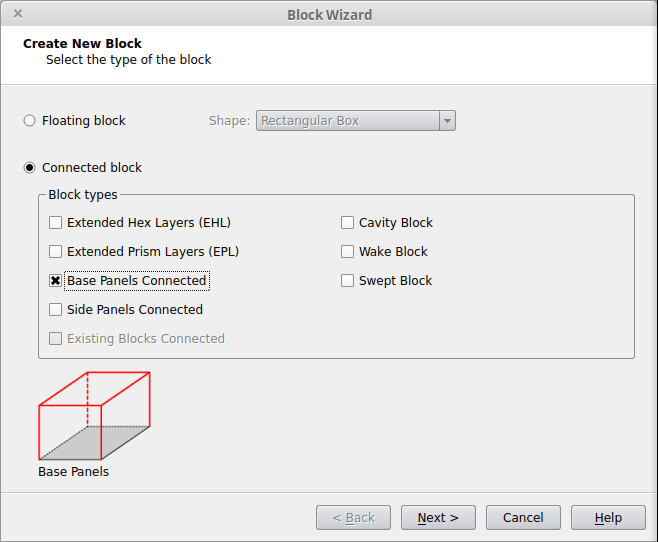
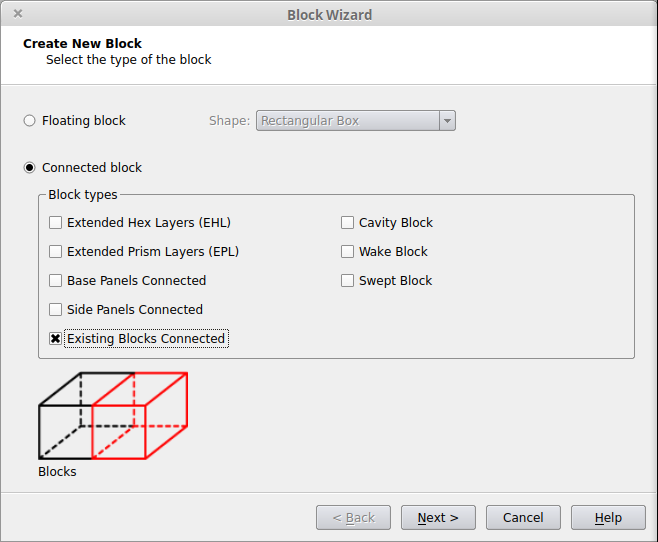
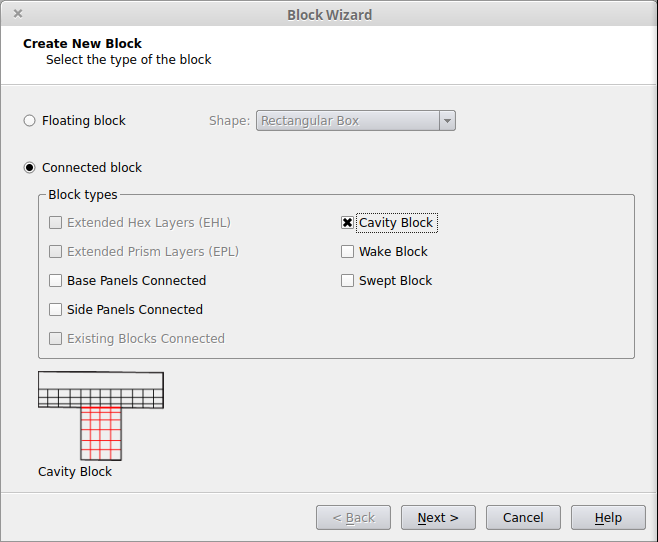
The first page of the wizard defines how the block will be connected to the existing case. Depending on which options are checked on the first page of the wizard, different pages of the wizard will be used. If multiple options are selected, the process will use pages from the various categories below as needed.
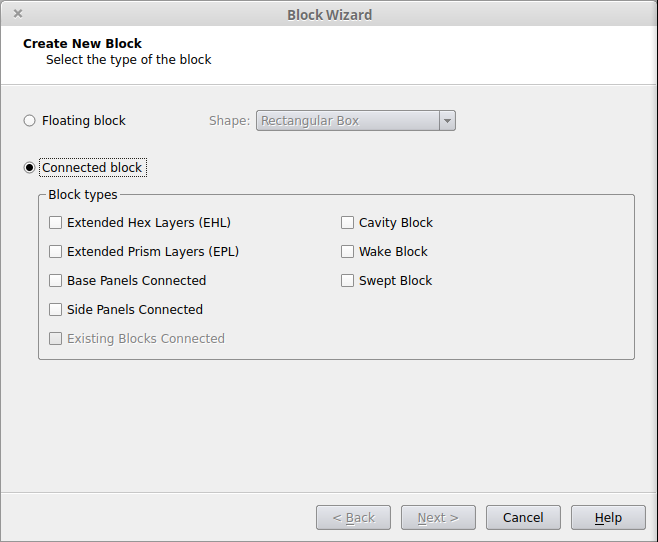
The following types of blocks are possible:
Option Usage
Floating
  • The new block is a block that is not connected to the geometry, boundary layer mesh, or any existing blocks.
  • The new block’s shape is a simple geometric shape like a cylinder or hexahedron.
Extended Hex Layers (EHL)
  • The new block starts from the outer surface of the boundary layer mesh generated on the panel.
  • It is connected to 4-sided Struct Hex panels/superpanels or 2-, 3- or 4-sided Unstruct Hex panels/superpanels.
  • It covers the entire panel area.
Extended Prism Layers (EPL)
  • The new block starts from the outer surface of the boundary layer mesh generated on the panel.
  • It is connected to 2-, 3- or 4-sided Prism panels or superpanels.
  • It covers the entire panel area.
Base Panels Connected
  • The new block starts from the panel surface and replaces the local boundary layer mesh.
  • It is connected only to 4-sided panels or superpanels and creates a block of structured hexahedra directly connected to the panels.
  • It covers the entire panel area.
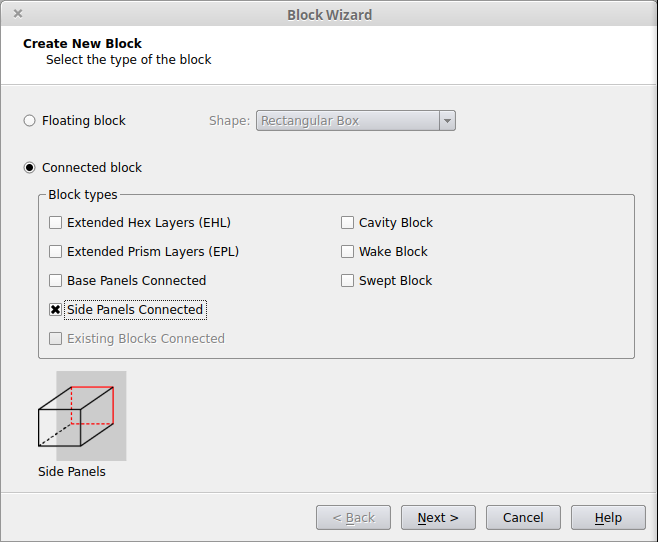
Side Panels Connected
  • The new block is connected to Hybrid and/or Tetrahedra panels. Those panels do not have a boundary layer mesh generated started from them (e.g. panels with Symmetry boundary condition).
  • It covers the entire panel area or just a portion of it.
Existing Blocks Connected
  • The new block is attached either to other connected blocks (e.g. EHL, EPL, Base Panel blocks) or to free blocks.
Cavity Block
  • The new block fills a cavity or other region with a fully structured mesh so that the boundary layer mesh in the adjacent region will not be interrupted by the presence of the cavity.
  • A cavity block will have one or more of its faces defined as the Cavity Interface (its exposed faces). Hexahedral layers will be generated from the Cavity Interface during the generation of the typical boundary layer mesh and will be continuous with boundary layer mesh grown from adjacent wall panels.
  • The Cavity option is usually chosen along with Base Panels. Blocks cannot have both Cavity and EHL/EPL connections.
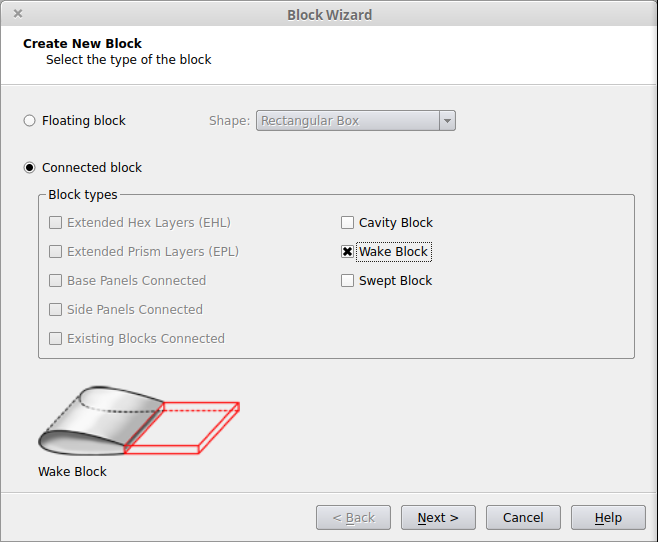
Wake Block
  • The new block is attached to the trailing edge panels of the geometry.
  • A wake block consisting of either hexahedra and/or prisms is created, depending on the shape of the selected panels and the element type chosen.
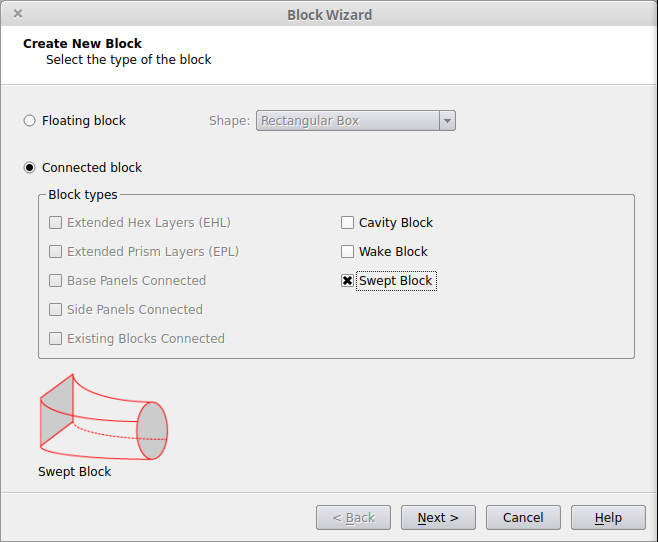
Swept Block
  • The new block is created by sweeping a surface mesh along a path defined by panels within the geometry.
  • A swept block can start and/or end at an existing panel or a free surface. For blocks that start/end on a free surface, layers of prisms or hexahedra can be grown outward from this surface.
  • The starting surface mesh may consist of either triangles or quadrilaterals.

Related Tutorials

Floating Blocks

If this option is chosen, a floating block must be specified. The next button will then open the appropriate floating block properties window allow for the block shape and number of points to be defined along with the point distributions in each direction.

Extended Hex Layers (EHL)

This option creates one or more Extended Hex Layers blocks. An Extended Hex Layers block is a structured hex block that is attached to the outer layer of a region of structured boundary layer hexahedra, grown from a Struct Hex panel or superpanel. This allows for the hexahedra to continue from the boundary layer mesh into the interior of the domain. Extended Hex Layers connections are only allowed to panels that are in groups with the Element Type set to Struct Hex. If the panels are not already in such groups, the groups will be modified or a new group will be created at the end of the process.
Select the Panel(s)

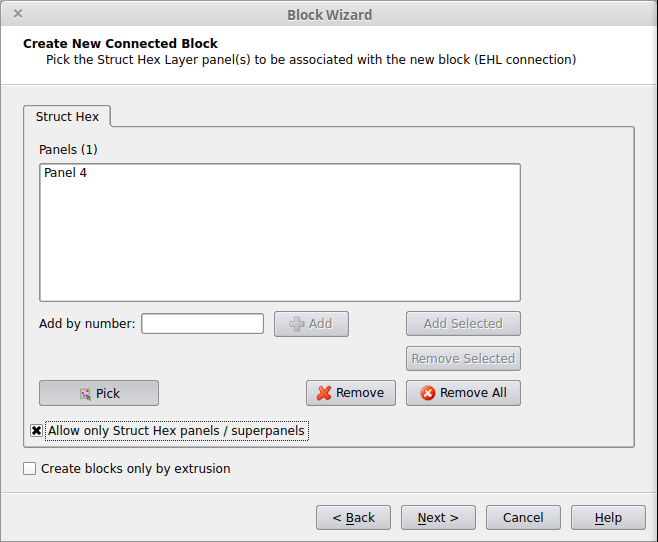
The next step is to select the Struct Hex panel(s) from which the block will start. Panels can be added via traditional selection, typing a specific number or using the Pick button to interactively select the panels using the mouse. Only 4-sided panels or superpanels will be able to be picked during this step. Note that if the panels selected form a full loop using between 2 and 4 panels, a 5-block configuration will be created with a square core. If fewer than 4 panels have been selected, the selected panels will be split appropriately to form a 4 panel loop. If the 4 panels meet at 900 angles, a choice is given to form 1 block or 5 blocks.
Allow only Struct Hex panels/superpanels
If checked, this option will only allow for panels that are already in groups with the element type set to Struct Hex to be chosen. This simplifies the display and picking process and is the default if any panels have been placed into such groups already.
Create blocks only by extrusion
If checked, each selected panel will be extruded to form a new block.
If unchecked, the set of panels will be analyzed to see if an L, U or □ shape is formed by the panels and if so, one block will be formed using the selected panels.


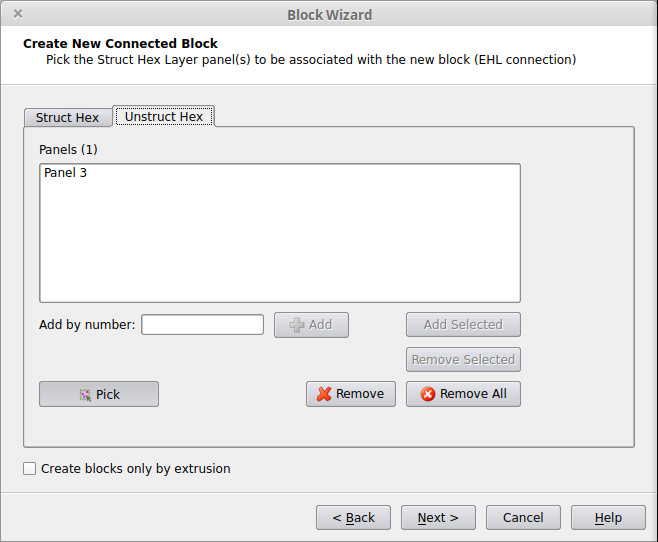
If the current case has any panels that are in Unstruct Hex groups, then there will be an additional tab, Unstruct Hex, that will allow for those Unstruct Hex Panels to be picked. Note that forming a EHL block from an Unstuct Hex Panel will result in a block containing semistructured hexahedra instead of structured hexahedra.

For Unstruct Hex, only 2-, 3-, or 4-sided panels or superpanels with no inner trimming loops will be able to be picked during this step.
 

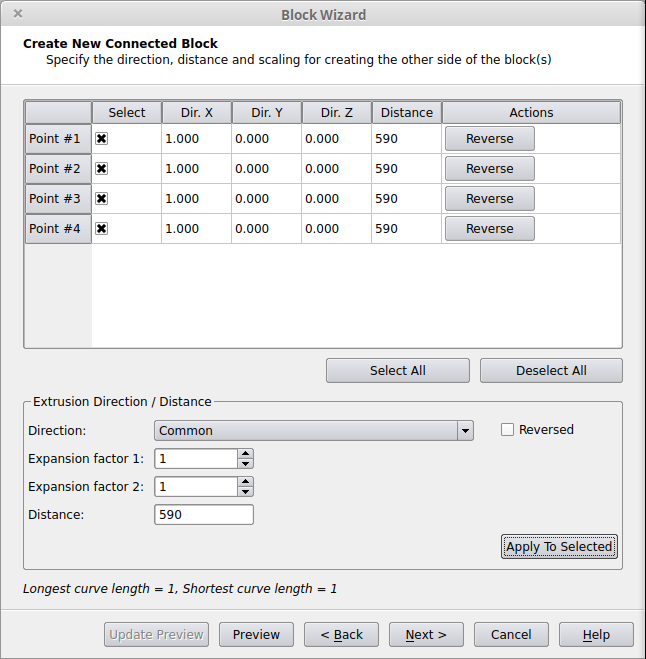
Define the Block Shape
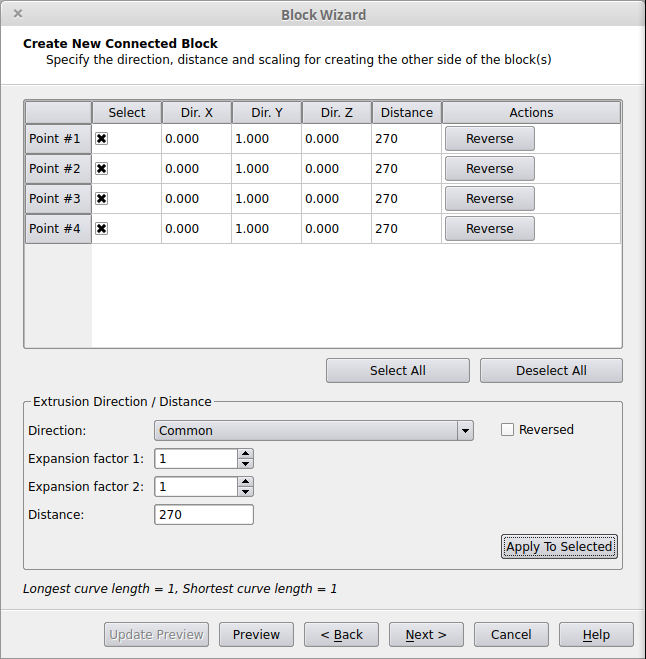
A block will be created by extruding the selected panel(s) based on the specified direction, distance and expansion factors. Note that if multiple Struct Hex panels are selected and they form concave angles with themselves and thus form an L-, U- or □-shape, this wizard page will not be shown unless Create blocks only by extrusion was checked.
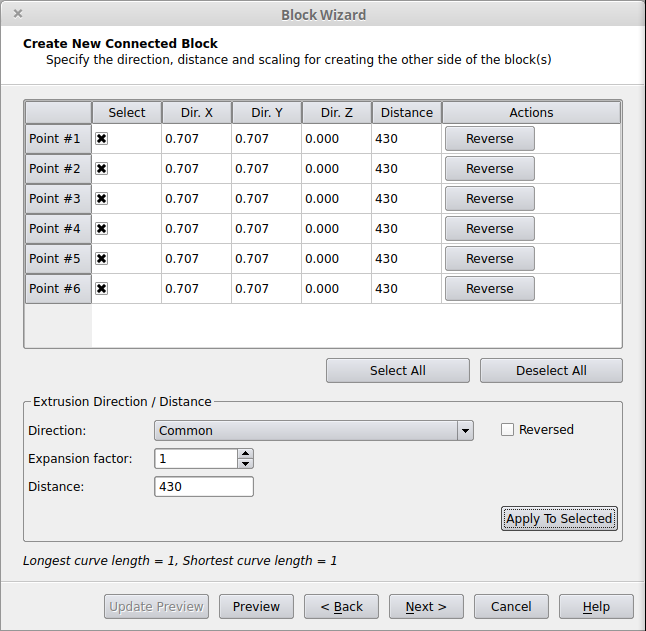
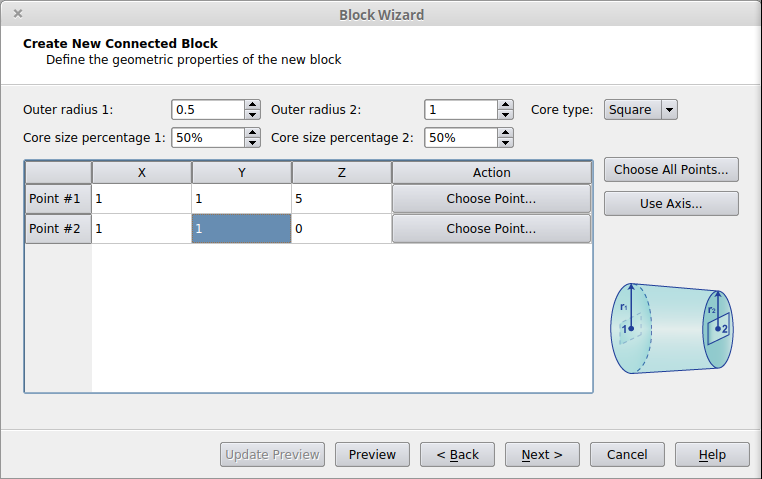
Point #1 … Point#N
For each curve endpoint belonging to the selected panels, the direction and distance can be individually modified including reversing the extrusion direction.
Extrusion Direction / Distance
These options can be used to auto-adjust the direction/distance values included in the table.
Direction (details)
Individual – Based on Picked Panels
The direction of the selected points will be recalculated using only the surfaces of the picked panel(s).
Individual – Based on Picked and Neighbor Panels
The direction of the selected points will be recalculated using the surfaces of the picked panel(s) and all the neighboring panels.
Common
A single direction is calculated for the selected points based on the picked panels. If only one panel is selected the directions can be adjusted so that the block is expanded in one or both directions. (This is the default direction presented.)
Note: If the Reversed checkbox is enabled all vectors will be flipped in the opposite direction.
Distance
This extrusion distance is applied to all selected points.
Apply To Selected
This button is used to apply the specified Direction and Distance options to the selected points. The vectors shown in the graphics display are updated accordingly.
Preview / Update Preview
The resulting block shape is shown in the graphics display.

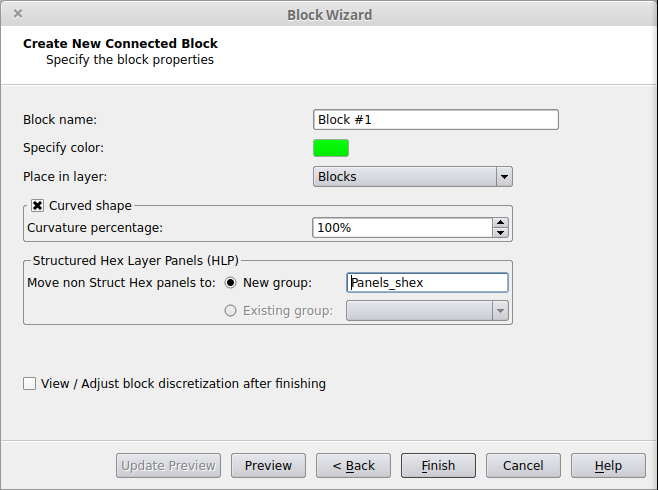
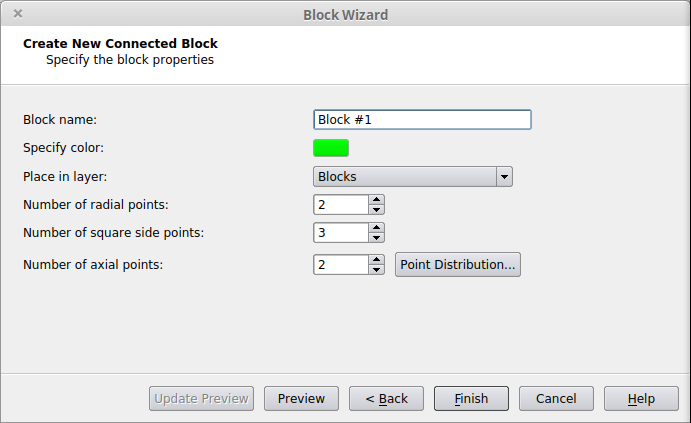
Define the Hex Block Properties:

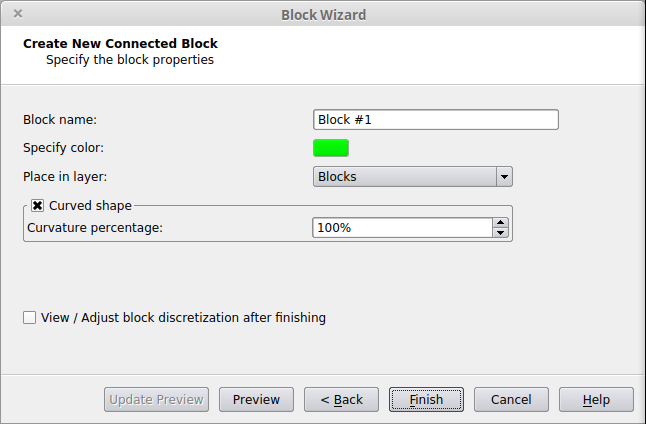
Block name
This is how the block will be referred to in the Block Management Window.


Specify color
This button opens a Color Selection Window to allow for the block to be displayed in a user-specified color.
Place in layer
The block will be placed into a specific layer or left in the default Blocks layer.
Curved shape
If the Curved Shape option is selected, the Curvature percentage of the block can be set. The Curvature percentage parameter defines the degree of curvature of the block relatively to the curvature of the surface(s) from which the block starts.
View / Adjust block discretization after finishing
If the View / Adjust block discretization after finishing option is checked, the View Mode will be switched to Struct Surface Curves / Block Edges Mode after the wizard has finished, to enable easy control over the number of discretization points of the block.

Related Tutorials

Extended Prism Layers (EPL)
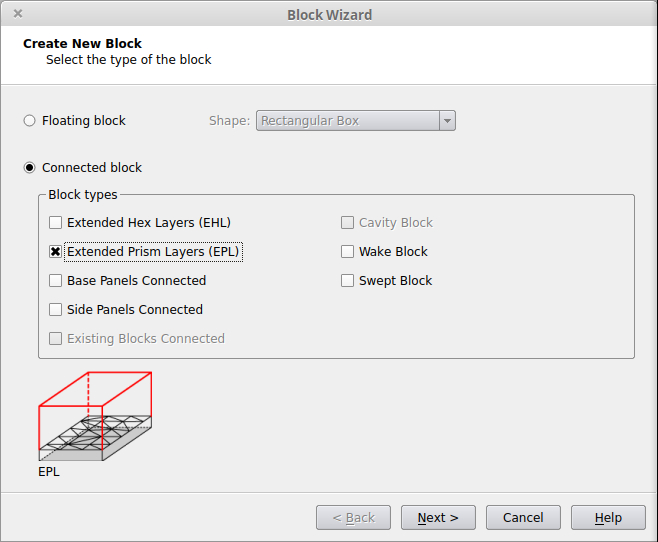
This option creates one or more Extended Prism Layers blocks. An Extended Prism Layers block is a semi-structured block of prisms that is attached to the outer layer of a region of boundary layer prisms, grown from a Prism panel or superpanel. This allows for the prisms to continue from the boundary layer mesh into the interior of the domain. Extended Prism Layers connections are only allowed to panels that are in groups with the Element Type set to Prisms. If the panels are not already in such groups, the groups will be modified or a new group will be created at the end of the process.
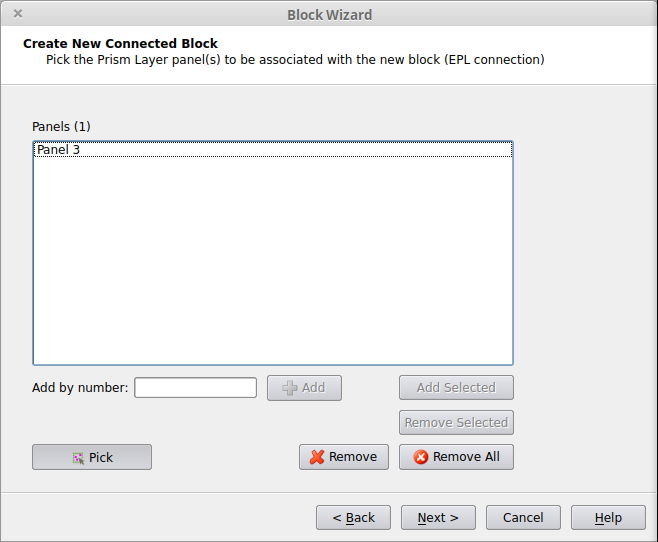
Select the Panel(s)

The next step is to select the Prism panel(s) from which the block will start. Panels can be added via traditional selection, typing a specific number or using the Pick button to interactively select the panels using the mouse. Only 2-, 3-, or 4-sided panels or superpanels with no inner trimming loops will be able to be picked during this step.

Define the Block Shape

A block will be created by extruding the selected panel(s) based on the specified direction, distance and expansion factors.
Point #1 … Point#N
For each curve endpoint belonging to the selected panels, the direction and distance can be individually modified including reversing the extrusion direction.
Extrusion Direction / Distance:
Direction (details)
Individual – Based on Picked Panels
The direction of the selected points will be recalculated using only the surfaces of the picked panel(s).
Individual – Based on Picked and Neighbor Panels
The direction of the selected points will be recalculated using the surfaces of the picked panel(s) and all the neighboring panels.
Common
A single direction is calculated for the selected points based on the picked panels. If only one panel is selected the directions can be adjusted so that the block is expanded in one or both directions. (This is the default direction presented.)
Note: If the Reversed checkbox is enabled all vectors will be flipped in the opposite direction.
Distance
This extrusion distance is applied to all selected points.
Apply To Selected
This button is used to apply the specified Direction and Distance options to the selected points. The vectors shown in the graphics display are updated accordingly.
Preview / Update Preview
The resulting block shape resulting is shown in the graphics display.

Define the Block Properties:

Block name
This is how the block will be referred to in the Block Management Window.
Specify color
This button opens a Color Selection Window to allow for the block to be displayed in a user-specified color.
Place in layer
The block will be placed into a specific layer or left in the default Blocks layer.
Curved shape
If the Curved Shape option is selected, the Curvature percentage of the block can be set. The Curvature percentage parameter defines the degree of curvature of the block relatively to the curvature of the surface(s) from which the block starts.
View / Adjust block discretization after finishing
If the View / Adjust block discretization after finishing option is checked, the View Mode will be switched to Struct Surface Curves / Block Edges Mode after the wizard has finished, to enable easy control over the number of block points.

Related Tutorials

Base Panels

This option will connect the new block directly to any 4-sided panels or superpanels in the geometry. This allows for fully structured meshes to be created for entire domains or subdomains (simple regions of complicated geometries).
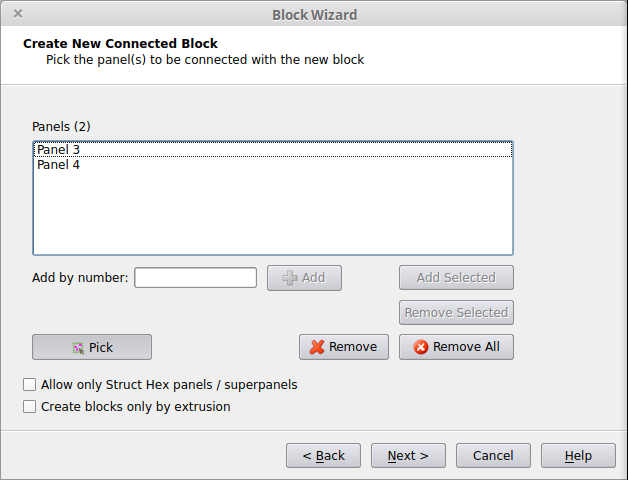
Select the Panel(s)

The next step is to select the panel(s) from which the block will start. Panels can be added via traditional selection, typing a specific number or using the Pick button to interactively select the panels using the mouse. Only 4-sided panels or superpanels will be able to be picked during this step. Note that if the panels selected form a full loop using between 2 and 4 panels, a 5-block configuration will be created with a square core. If fewer than 4 panels have been selected, the selected panels will be split appropriately to form a 4 panel loop. If the 4 panels meet at 900 angles, a choice is given to form 1 block or 5 blocks.
Allow only Struct Hex panels/superpanels
If checked, this option will only allow for panels that are already in groups with the element type set to Struct Hex to be chosen. This simplifies the display and picking process and is the default if any panels have been placed into such groups already.


Define the Block Shape

A block will be created by extruding the selected panel(s) based on the specified direction, distance and scaling factors. Note that if multiple panels are selected and they form concave angles with themselves and thus form an L-, U- or □-shape, this wizard page will not be shown.
Point #1 … Point#N
For each curve endpoint belonging to the selected panels, the direction and distance can be individually modified including reversing the extrusion direction.
Extrusion Direction / Distance
These options can be used to auto-adjust the direction/distance values included in the table.
Direction (details)
Individual – Based on Picked Panels
The direction of the selected points will be recalculated using only the surfaces of the picked panel(s).
Individual – Based on Picked and Neighbor Panels
The direction of the selected points will be recalculated using the surfaces of the picked panel(s) and all the neighboring panels.
Common
A single direction is calculated for the selected points based on the picked panels. If only one panel is selected the directions can be adjusted so that the block is expanded in one or both directions. (This is the default direction presented.)
Note: If the Reversed checkbox is enabled all vectors will be flipped in the opposite direction.
Distance
This extrusion distance is applied to all selected points.
Apply To Selected
This button is used to apply the specified Direction and Distance options to the selected points. The vectors shown in the graphics display are updated accordingly.
Preview / Update Preview
The resulting block shape is shown in the graphics display.

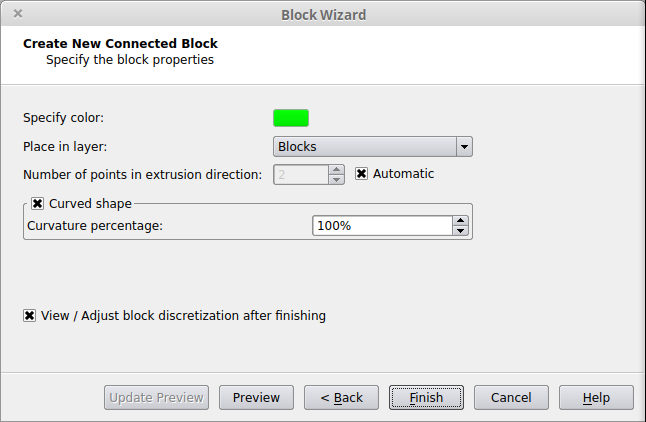
Define the Hex Block Properties:

Block name
This is how the block will be referred to in the Block Management Window.
Specify color
This button opens a Color Selection Window to allow for the block to be displayed in a user-specified color.
Place in layer
The block will be placed into a specific layer or left in the default Blocks layer.
Number of points in the extrusion direction
Specify the number of points in the extrusion direction. For the lateral directions, by default, the number of points is automatically determined by the mesh generator. The discretization points of the block in all directions can be modified using the Struct Surface Curves / Block Edges Mode after the block’s creation.
Curved Shape
If the Curved Shape option is selected, the Curvature percentage of the block can be set. The Curvature percentage parameter controls the degree of curvature of the block relatively to the curvature of the surface(s) from which the block starts.
View / Adjust block discretization after finishing
If the View / Adjust block discretization after finishing option is checked, the View Mode will be switched to Struct Surface Curves / Block Edges Mode after the wizard has finished, to enable easy control over the number of block points.

Related Tutorials

Existing Blocks

This option allows for a new hex block to be created that is directly linked to one or more existing hex blocks.
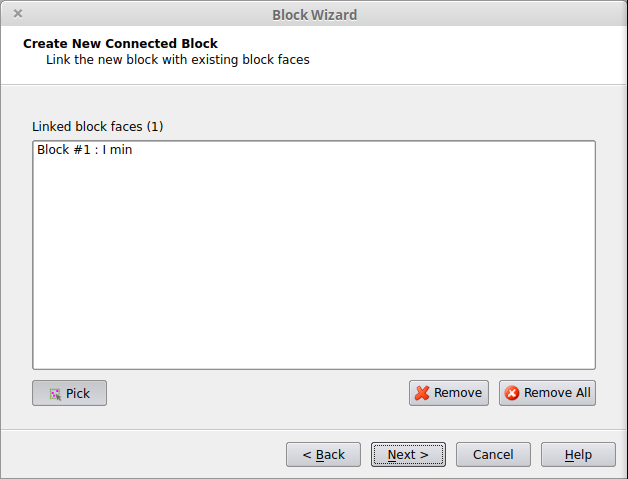
Select the Existing Hex Block Face(s)

The next step is to select the faces of existing Hex Block(s) from which the block will start. Faces can be added interactively using the mouse or automatically suggested using the Suggest Hex Face Linkings button:


Select the Geometry Type of the New Block
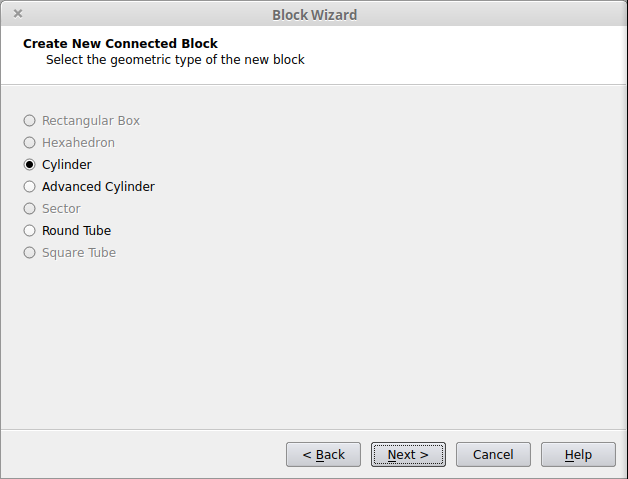
The next step is to select the type of geometry for the new block. The list will only include type that are compatible with the hex block faces previously selected. For example, in this case a round faces was chosen, so only round block types are possible.


Define the Block Shape

A block will be created by extruding the selected block faces(s) based on the specified direction, distance and expansion factors. The available options may be slightly different depending on the type of the existing block. Note that if multiple rectangular block faces are selected and they form concave angles with themselves and thus form an L- or U-shape, this wizard page will not be shown.


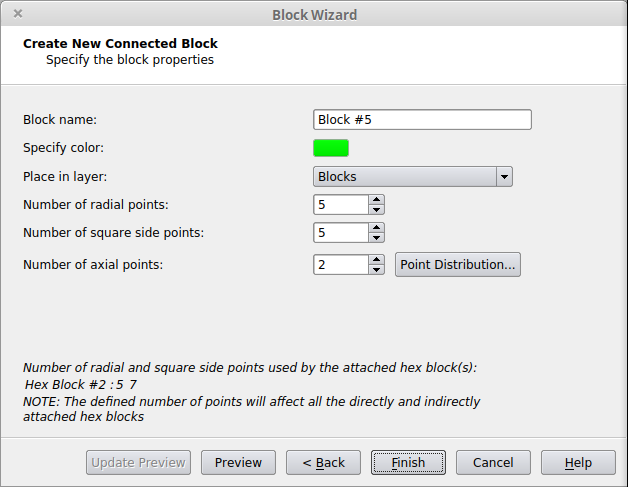
Define the Hex Block Properties

Finally, the name of the block, the color and the number of points in each direction will be set. The number of points from the existing block(s) will be automatically set. If these values are changed, all connected blocks will also be adjusted. Point distributions can also be modified for various directions from this page using the appropriate button. The exact options on this window will depend on the block type that is created.


Related Tutorials

Side Panels

This option allows for the sides (or ends) of a hex block to connect to the CAD without the need for transitional elements between the block and the geometry. For the Side Panels option, connections are only allowed to panels in groups with the type Hybrid or Tetrahedra.

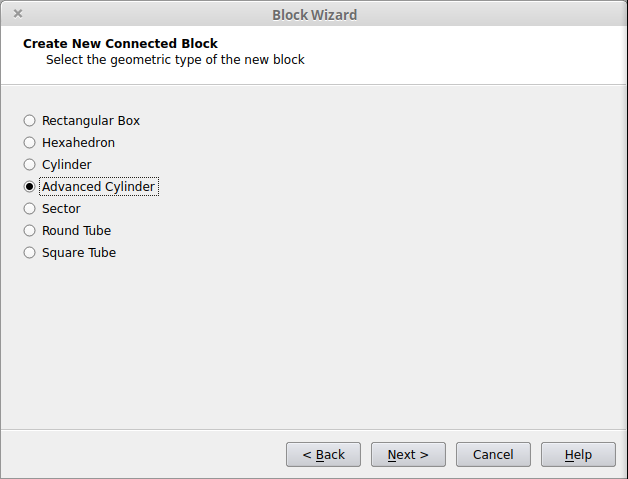
Select the Geometry Type of the New Block
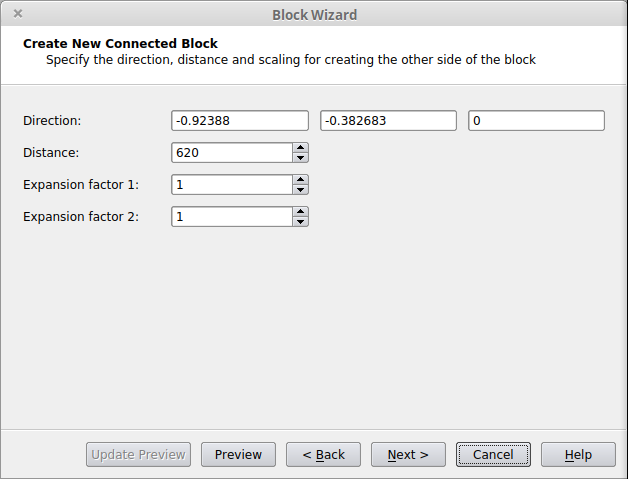
The next step is to select the type of geometry for the new block.


Define the Block Shape

Next, define the geometric shape of the new block. This window will vary depending on the type of block being created. The Preview button can be used to see the shape of the block.


Review any suggested Side Panel connections.
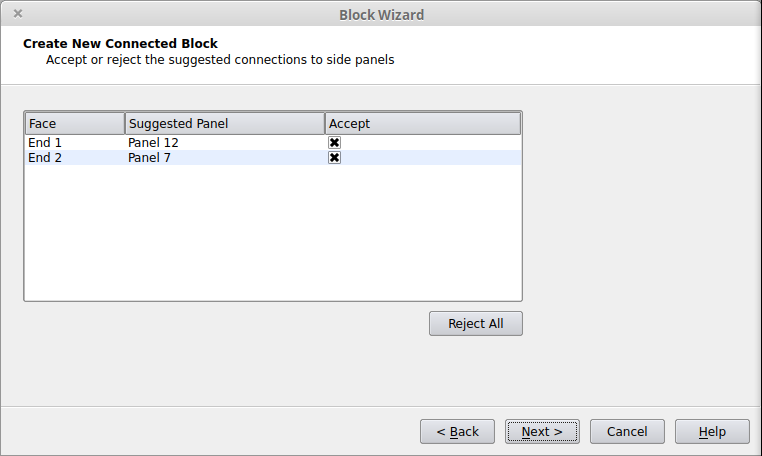
The geometry is analyzed for possible connections. After that, if any connections are found, this window will appear and the display will show the connections that are suggested. By default, all of them will be accepted when the Next button is pressed. Each suggested connection can be seen individually by clicking on the line in the table for the connection.


Link the Block to more side panels (optional)
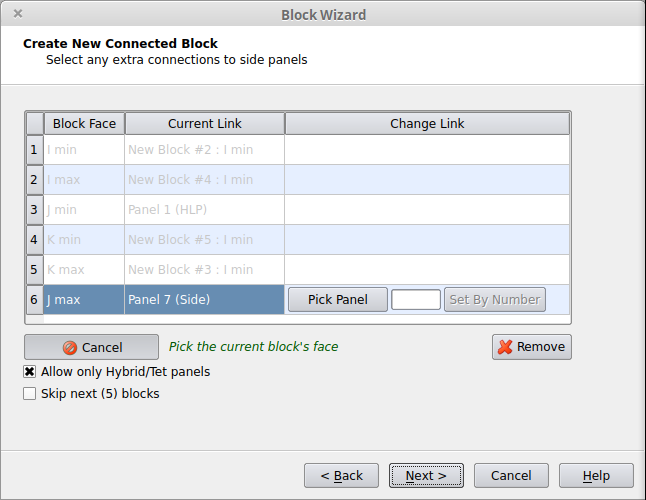
Use the Add Face Link button to define a link between a face of the block and a panel in the geometry. When the button is pressed, the window will prompt for a block face to be picked using the mouse and then the panel can be picked using either the mouse, selecting it by number or using previously selected panels. Only panels with the boundary condition(s) defined in the prior step will be pickable. Note, if multiple blocks are being formed (via the EHL or Base Panels options), face links for each block will be treated one block at a time. Also, any accepted suggested connections will be shown in the table for that block.
The Allow only Hybrid/Tet panels option can be used to limit the panel selection only to panels that have the usual types for Side Panel connections.
The Skip next (#) blocks option can be used to quickly skip this page for all subsequent blocks. This is useful if the automatic Side Panel selection already identified all the necessary Side Panel connections or if all the necessary connections have already been made manually.


Define the Hex Block Properties

Finally, the name of the block, the color and the number of points in each direction will be set. Point distributions can also be modified for various directions from this page using the appropriate button. The exact options on this window will depend on the block type that is created.


Related Tutorials

Cavity

This option allows for the creation of a block that will fill a cavity with a fully structured mesh so that the boundary layer mesh in the adjacent region will ‘ignore’ the cavity. A cavity block will have one or more of its faces defined as the Cavity Interface (its free ends). Hexahedral layers grow from the Cavity Interface outwards during the generation of the typical boundary layer mesh consisting of non-cavity prisms/hexas. The hexas above the cavity merge smoothly laterally with the rest of the prismatic/hexahedral mesh. The Cavity option is usually chosen along with Base Panels.
Note: Cavity and EHL/EPL connection options cannot be picked simultaneously.
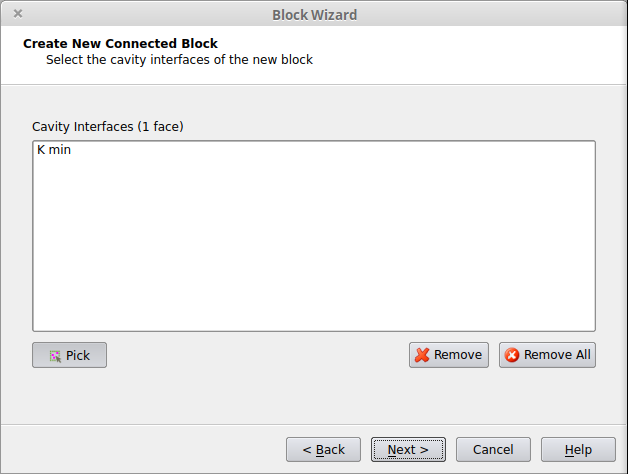
After the geometry of the block is defined and any Side Panel connections are made, the Cavity Interfaces are specified by simply clicking the mouse on the hex block faces that will have hexahedral layers grown from them.

Related Tutorials

Wake Blocks

If this option is chosen, the Create Wake Block Wizard is started and a wake block will be created attached to trailing edge panels.

Swept Blocks

If this option is chosen, the Create Swept Block Wizard is started and a swept block will be created.

Tubes/Pipes Blocking

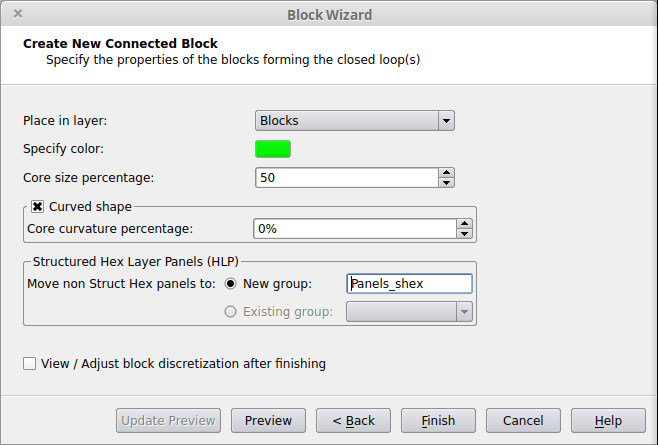
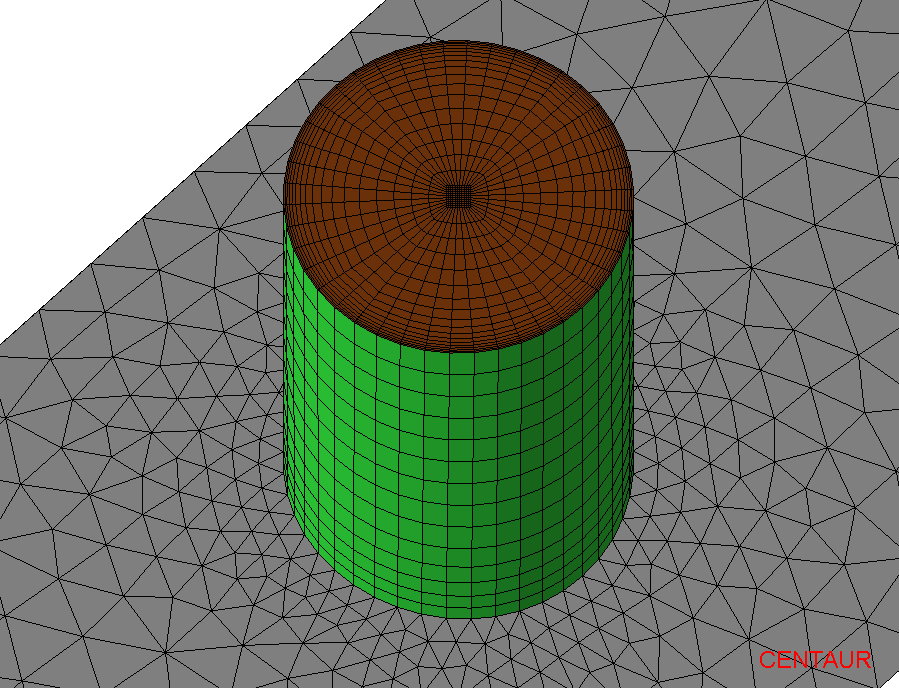
In case a hex block is connected to panels that form a full loop consisting of 2 to 4 panels, a 5-block configuration will be created with a square core. After picking the panels from which the block starts, the panels will be automatically split as needed and the following properties will be defined:
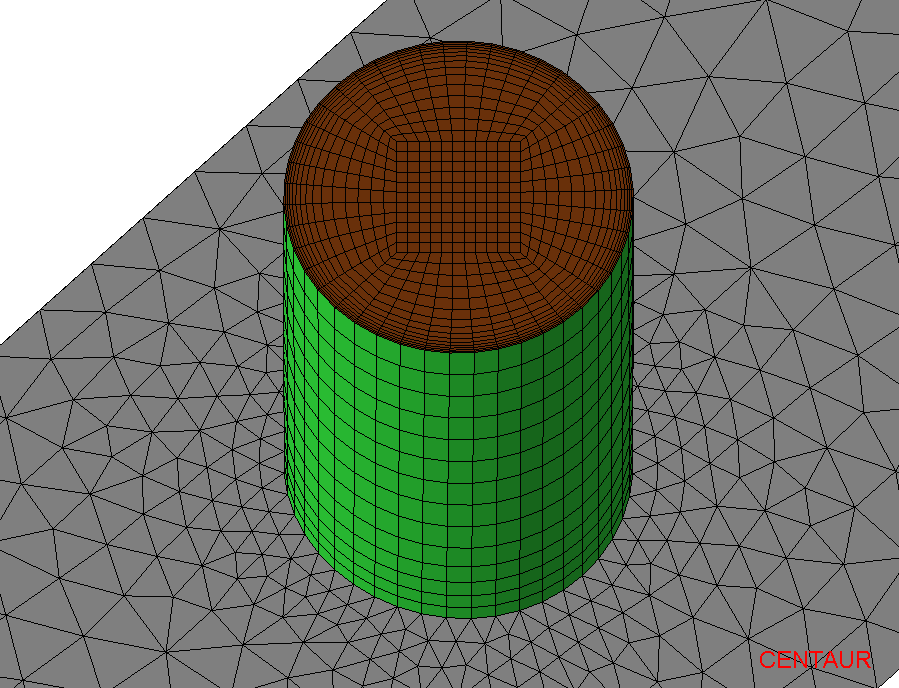
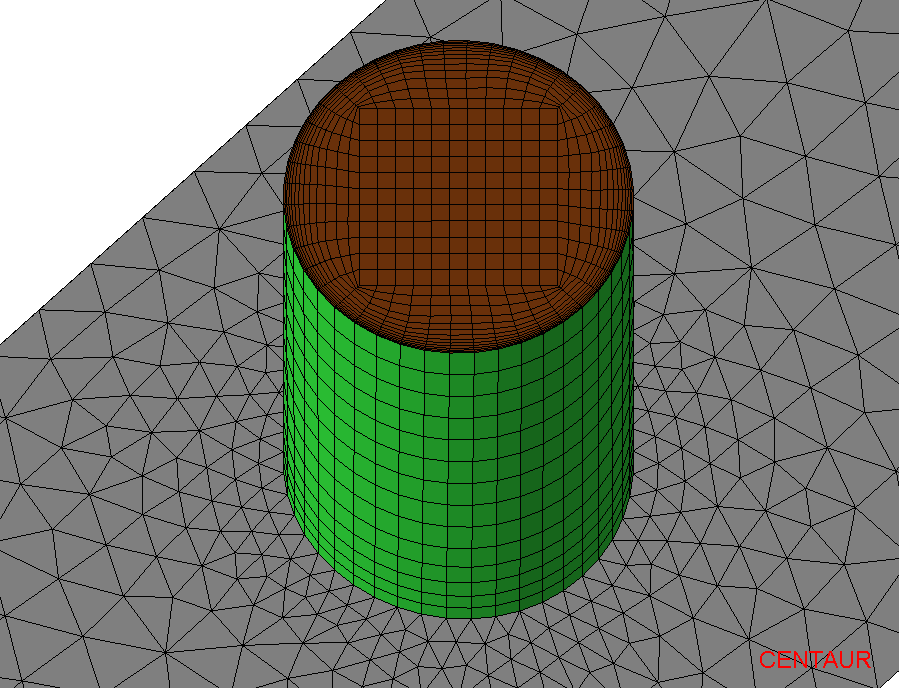
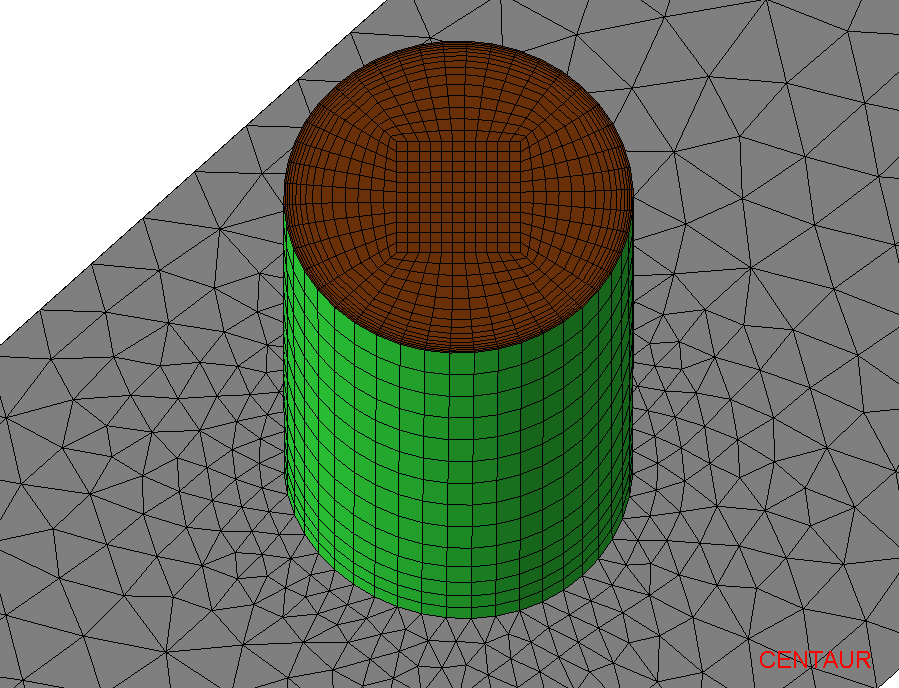
Core size percentage
This parameter controls the core size of the block. The core size is defined relatively to the size of the outer surface(s) to which the structured block is attached. The parameter can take values ranging from 5% to 90%.
Core size percentage=10% Default
Core size percentage=50%
Core size percentage=80%
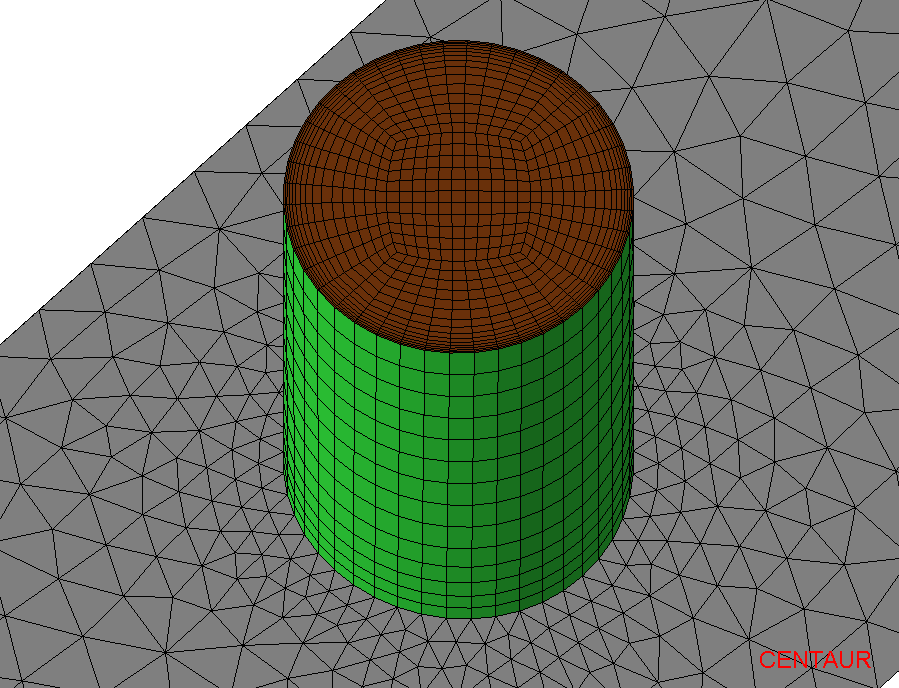
Core curvature percentage
If the Curved Shape option is selected, the core curvature percentage of the block can be set. This parameter controls the degree of the core curvature of the block. The Core curvature percentage is defined relatively to the curvature of the outer surface(s) to which the structured block is attached. It allows for a smooth transition from the square core to the curved outer surface. The parameter can take values up to 80%.
Default
Core curvature percentage
0%
Core curvature percentage
40%
Core curvature percentage
80%

Related Tutorials

Blocks with General Shape

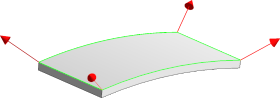
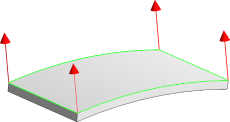
The shape of a block attached to the geometry (Extended Hex Layers block, Extended Prism Layers, or Base Panel block) is defined based on the extrusion direction and distance set for each corner point of the panel(s) from which the block grows.

The direction can be initialized based on the following options:
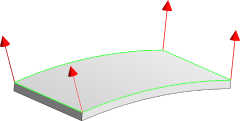
Individual
(based on picked panels)
Individual
(based on picked/neighbor panels)
Common

Regardless of the option selected, each vector can be modified via adjusting the X, Y, Z direction and its length (extrusion distance).

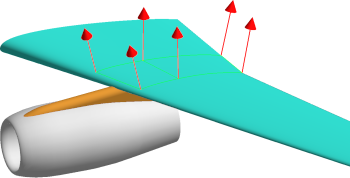
An example of a general-shaped block attached to local panels on the upper surface of a wing is shown below: